Billing & Subscriptions
Administration
Navigate to Administration → Billing to manage your subscription, payment method, and invoice history.
Two roles can access billing settings:
| Role | What they can do |
|---|---|
| Administrator | View and manage the subscription (upgrade, downgrade, cancel, resume) |
| Billing Manager | Same — exists so finance or operations staff can manage the subscription independently, without holding Administrator access to users and permissions |
Because a user can only hold one role per module, Administrator and Billing Manager are intentionally equivalent on billing operations. Assign Billing Manager to team members who only need subscription and invoice access.
Subscription tiers
NOB.center offers three subscription tiers. Each tier sets the quota limits for all monitoring modules across your organization.
| Tier | Description |
|---|---|
| Free | Entry-level tier with limited quotas, suitable for personal use or evaluation |
| Pro | Full-featured tier for teams with expanded quotas across all modules |
| Enterprise | Custom quotas and dedicated support for larger organizations |
Quota comparison
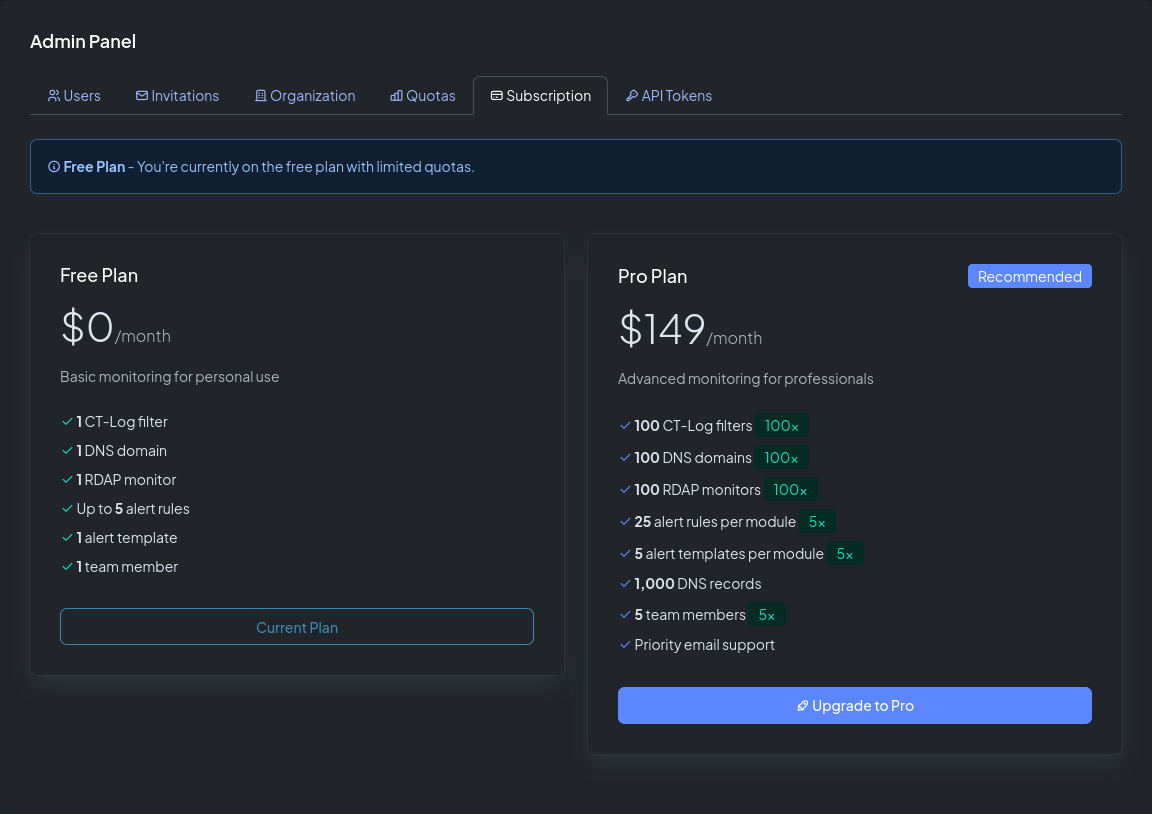
| Resource | Free | Pro | Enterprise |
|---|---|---|---|
| CT-Log | contact sales@nob.center | ||
| Domain filters | 1 | 100 | |
| Alert rules | 5 | 25 | |
| Alert templates | 1 | 5 | |
| DNS Monitoring | |||
| Monitored domains | 1 | 100 | |
| DNS records | 10 | 1,000 | |
| Alert rules | 5 | 25 | |
| Alert templates | 1 | 5 | |
| RDAP Monitoring | |||
| Monitored domains | 1 | 100 | |
| Alert rules | 5 | 25 | |
| Alert templates | 1 | 5 | |
| Certificate Deployment | |||
| Certificate monitors | 1 | 100 | |
| Alert rules | 10 | 25 | |
| Alert templates | 1 | 5 | |
| Organization | |||
| Team members | 1 | 5 | |
| API tokens | — | 25 |
Note
Free tier organizations cannot create API tokens. API access requires a Pro or Enterprise subscription.
Upgrading or downgrading
Click Change Plan on the Billing page to view available plans with their pricing and quota comparisons. Selecting a new plan opens a checkout session.
- Upgrading takes effect immediately. Quotas are increased right away.
- Downgrading takes effect at the end of the current billing period. Your current limits remain in place until then.
Cancellation and grace period
To cancel your subscription, click Cancel Subscription. Your subscription will remain active until the end of the current billing period.
After the billing period ends, a 14-day grace period begins. During the grace period you retain full access to all your data and monitoring. After the grace period expires, resources above the free tier limits are paused — no new data is collected and alerts stop firing for those resources, but your configuration is preserved.
You can resume a cancelled subscription at any time during the grace period or the billing period to avoid any interruption.
Note
Cancelling does not delete your data. All historical snapshots, certificate matches, alert history, and configuration are retained. If you re-subscribe, everything picks up exactly where it left off.
Payment method
Click Manage Billing to open the customer billing portal, where you can:
- Update your credit card or payment details
- Download invoices
- View billing history
The billing portal is hosted by Paddle, NOB.center's payment processor.
Invoices
Past invoices are accessible from the billing portal. Each invoice includes:
- Billing period
- Plan and amount charged
- Payment status
- Downloadable PDF