Users
Administration
Navigate to Administration → Users to manage the people in your organization.
Only users with the Administrator role can invite, edit, or remove users.
Inviting a user
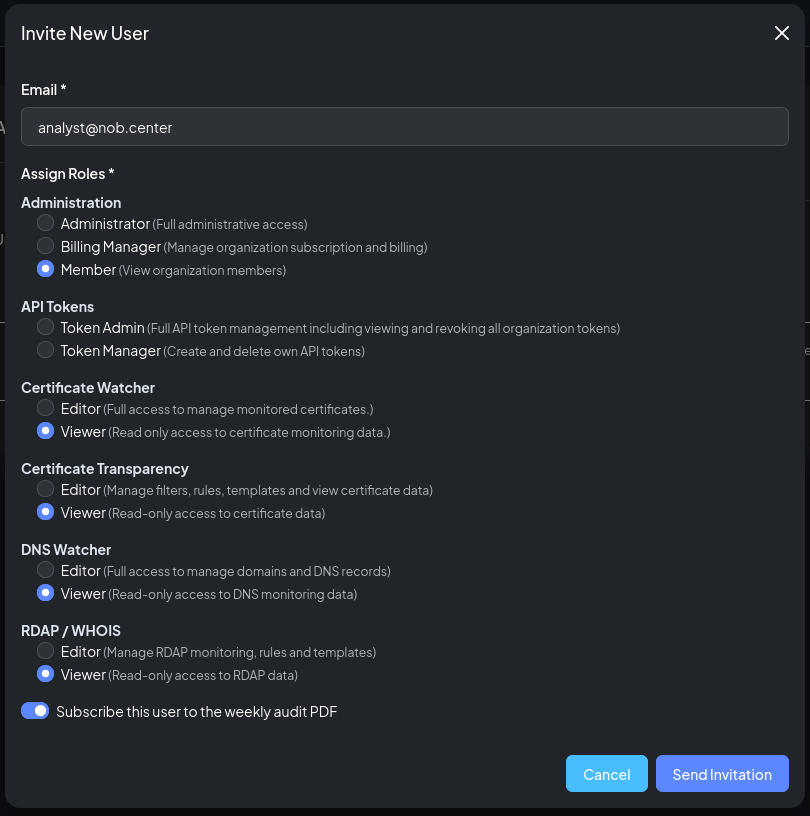
Click Invite User and fill in the invitation form:
| Field | Description |
|---|---|
| Email address | The recipient's email. An invitation link is sent to this address. |
| Module access | For each module you want the user to have access to, select a role (Viewer or Editor). Leave a module unselected to give no access. |
| Weekly audit report | Check to automatically enroll this user in the weekly PDF security report. |
The invitation expires after 7 days. You can resend it from the pending invitations list if the recipient did not receive it or the link expired.
Note
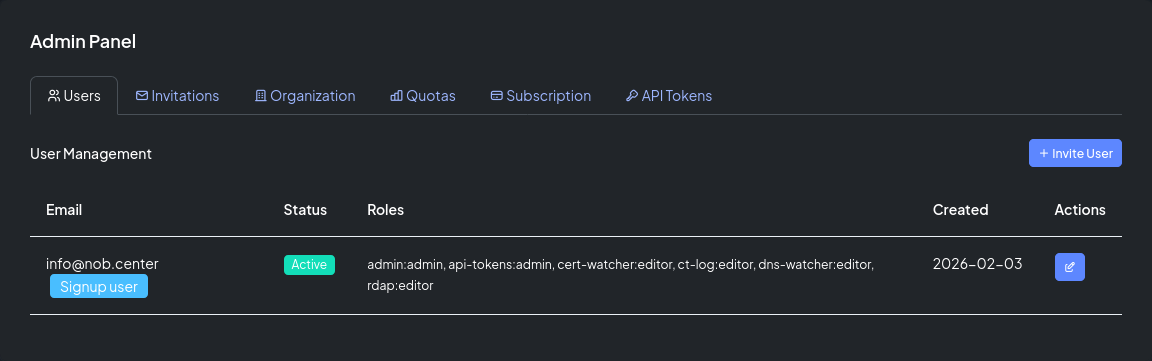
The signup user always holds the Administrator role for all modules and cannot be removed or have their permissions changed.
Predefined roles
Each module offers two roles:
| Role | Access level |
|---|---|
| Viewer | Read-only access to the module's data, rules, and alert history |
| Editor | Full access including creating and modifying filters, rules, templates, and monitored assets |
For a complete list of what each role permits, see Roles & Permissions.
Managing existing users
The user list shows all members of your organization with their current status and module roles.
Editing roles
Click a user's row and select Edit Roles to update which modules they can access and at what permission level. Changes take effect immediately.
Enabling and disabling users
You can temporarily disable a user's account without removing them. A disabled user cannot log in and their API tokens stop working, but their configuration (rules, templates, etc.) is preserved.
Removing a user
Removing a user revokes their access and removes their account from the organization. Their configurations are preserved for audit purposes. This action cannot be undone.
Pending invitations
The Pending Invitations tab shows invitations that have been sent but not yet accepted. From here you can:
- Resend — Generate a new invitation link and send a fresh email (useful if the original link expired or was not received)
- View — See which modules and roles were configured for the invitation
API reference
All user management endpoints require the manage_users permission.
GET /api/admin/users
List all users in the organization with their assigned module roles.
Permission: manage_users
Response:
{
  "users": [
    {
      "id": 1,
      "email": "alice@example.com",
      "status": "active",
      "is_signup_user": true,
      "created_at": "2026-01-01T00:00:00Z",
      "permissions": [
        { "module": "ct-log", "role": "Editor" },
        { "module": "dns-watcher", "role": "Viewer" }
      ]
    }
  ]
}
GET /api/admin/roles
List all available roles grouped by module.
Permission: manage_users
POST /api/admin/invitations
Send an invitation to a new user.
Permission: manage_users
Body:
| Field | Type | Required | Description |
|---|---|---|---|
email |
string | Yes | Recipient email address |
roles |
list | No | Array of {"module_name": "...", "role_name": "..."} objects |
weekly_audit_report_enabled |
bool | No | Enrol in weekly report email |
Response: {"message": "Invitation sent"}
GET /api/admin/invitations
List all pending (not yet accepted) invitations.
Permission: manage_users
POST /api/admin/invitations/{invitation_id}/resend
Resend an invitation, generating a new token and a fresh expiry.
Permission: manage_users
Response: {"message": "Invitation resent"}
PUT /api/admin/users/{user_id}
Update a user's module role assignments.
Permission: manage_permissions
Body: {"roles": [{"module_name": "ct-log", "role_name": "Editor"}]}
Response: {"message": "User roles updated"}
PUT /api/admin/users/{user_id}/status
Enable or disable a user account.
Permission: manage_users
Body: {"status": "disabled"} — active or disabled
Response: {"message": "User status updated"}
DELETE /api/admin/users/{user_id}
Remove a user from the organization.
Permission: manage_users
Response: {"message": "User removed"}